LiveGetting started
Verified capability suitable for normal customer operations.
Who this is for
A new compliance analyst who has never used export software. Use demo mode or a sandbox org with sample transactions. Allow 45–60 minutes.
Before you start
- Sign in via demo login or platform handoff — you need an authenticated shell.
- Reset demo data if rows look stale: POST /api/demo/reset (demo environments only).
- Keep Help open in a second tab or use the Guide button (?) on each workspace.
Step 1 — Vocabulary
- Open /help/compliance-basics — read Words you will see every day.
- You should see: Export compliance basics heading and disposition vocabulary.
- If terms are still unclear, re-read before continuing — later steps assume this language.
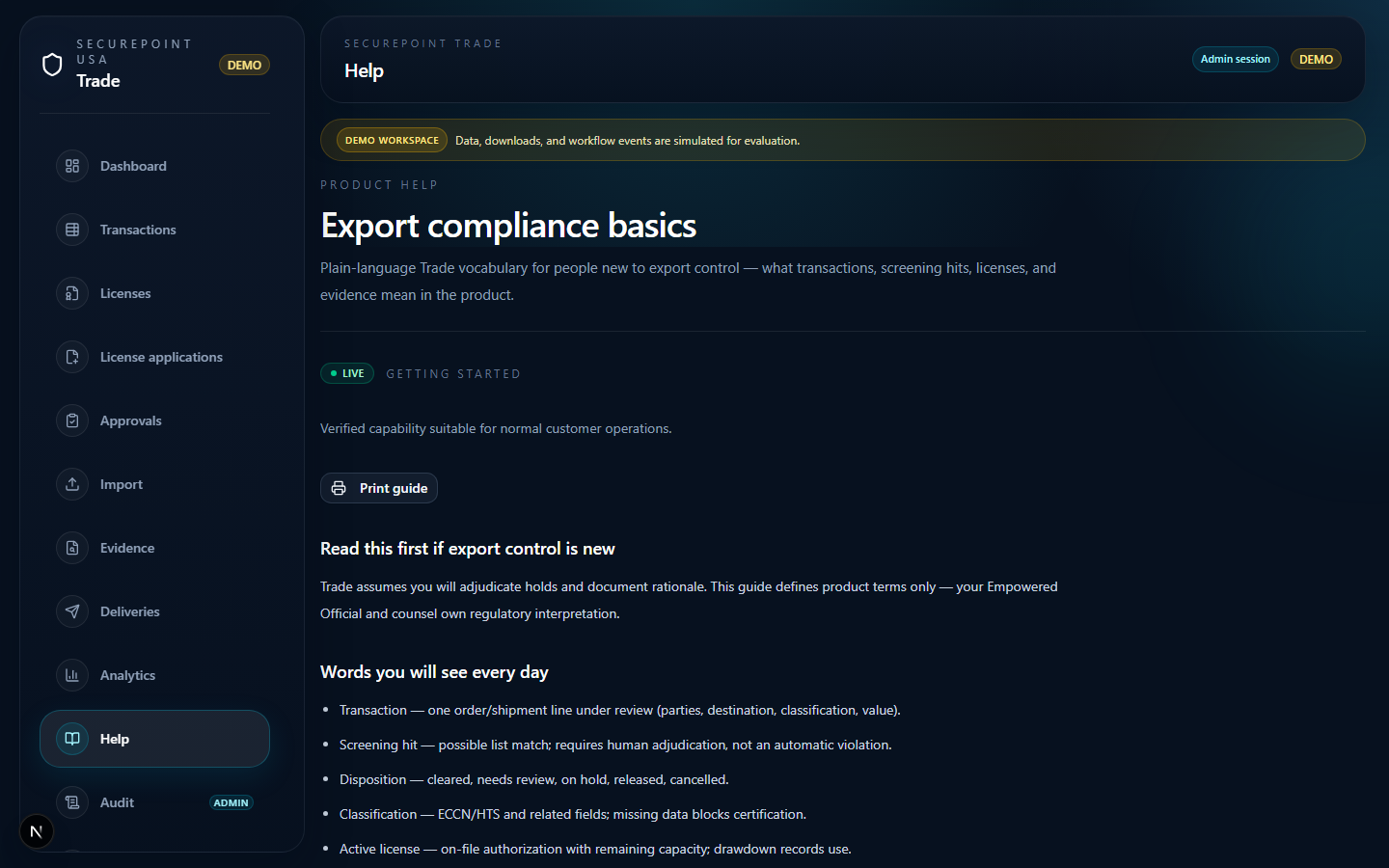
Step 2 — Role path
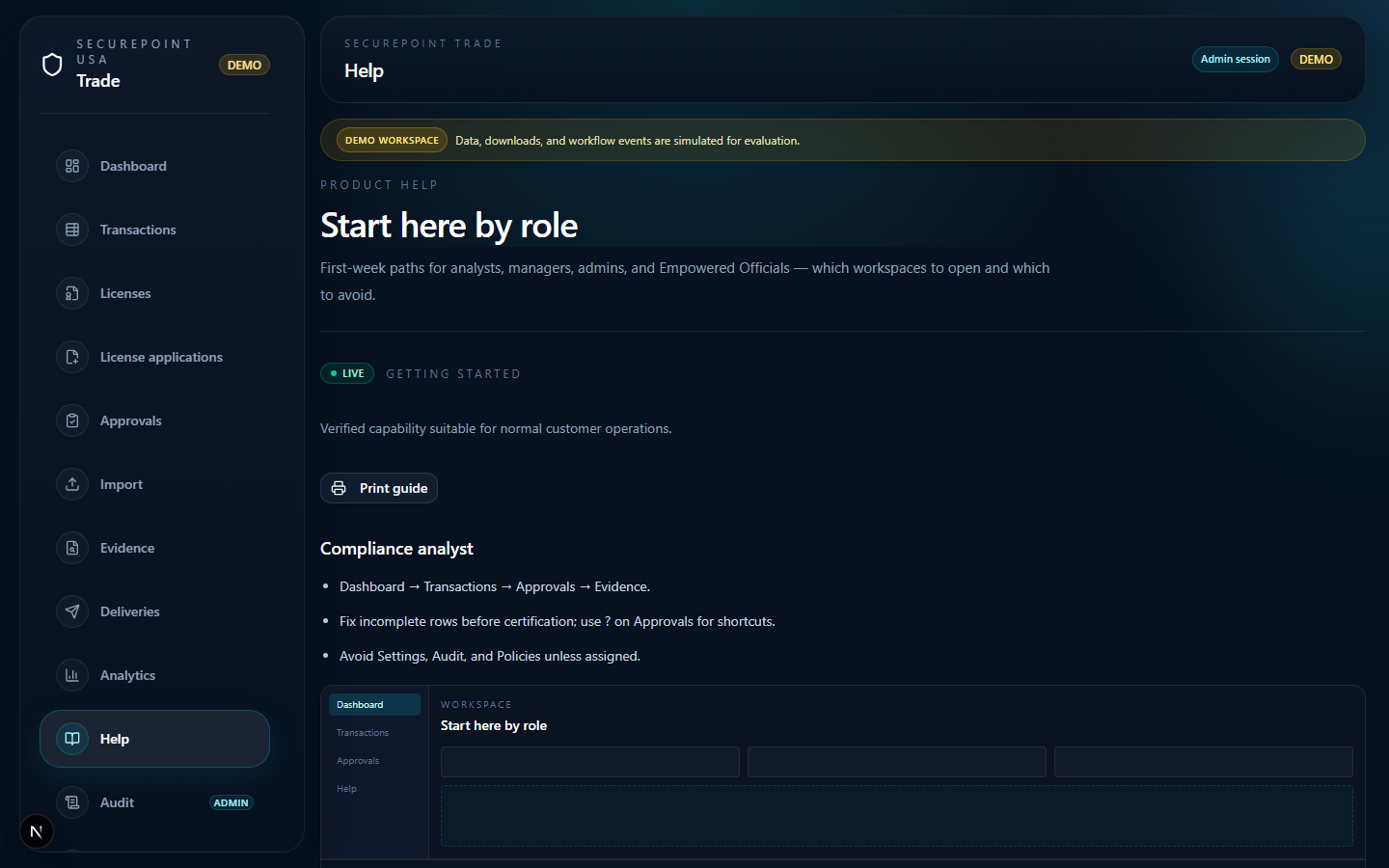
- Open /help/start-by-role — locate Compliance analyst section.
- Memorize the loop: Dashboard → Transactions → Approvals → Evidence.
Step 3 — Dashboard
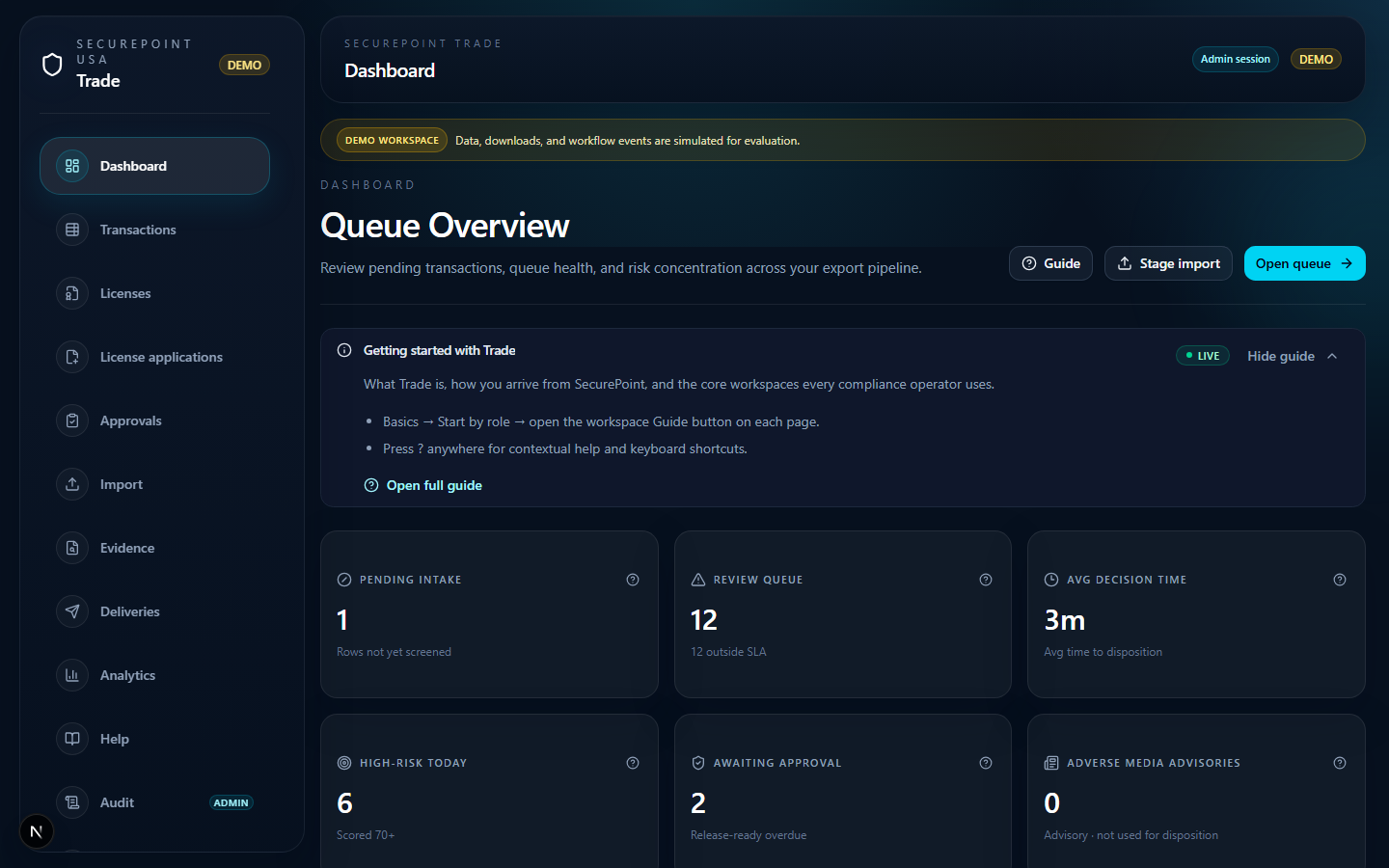
- Open /dashboard — confirm Queue Overview heading and KPI cards.
- If your org has zero transactions, use the first-week card on the dashboard.
Step 4 — Import (orientation)
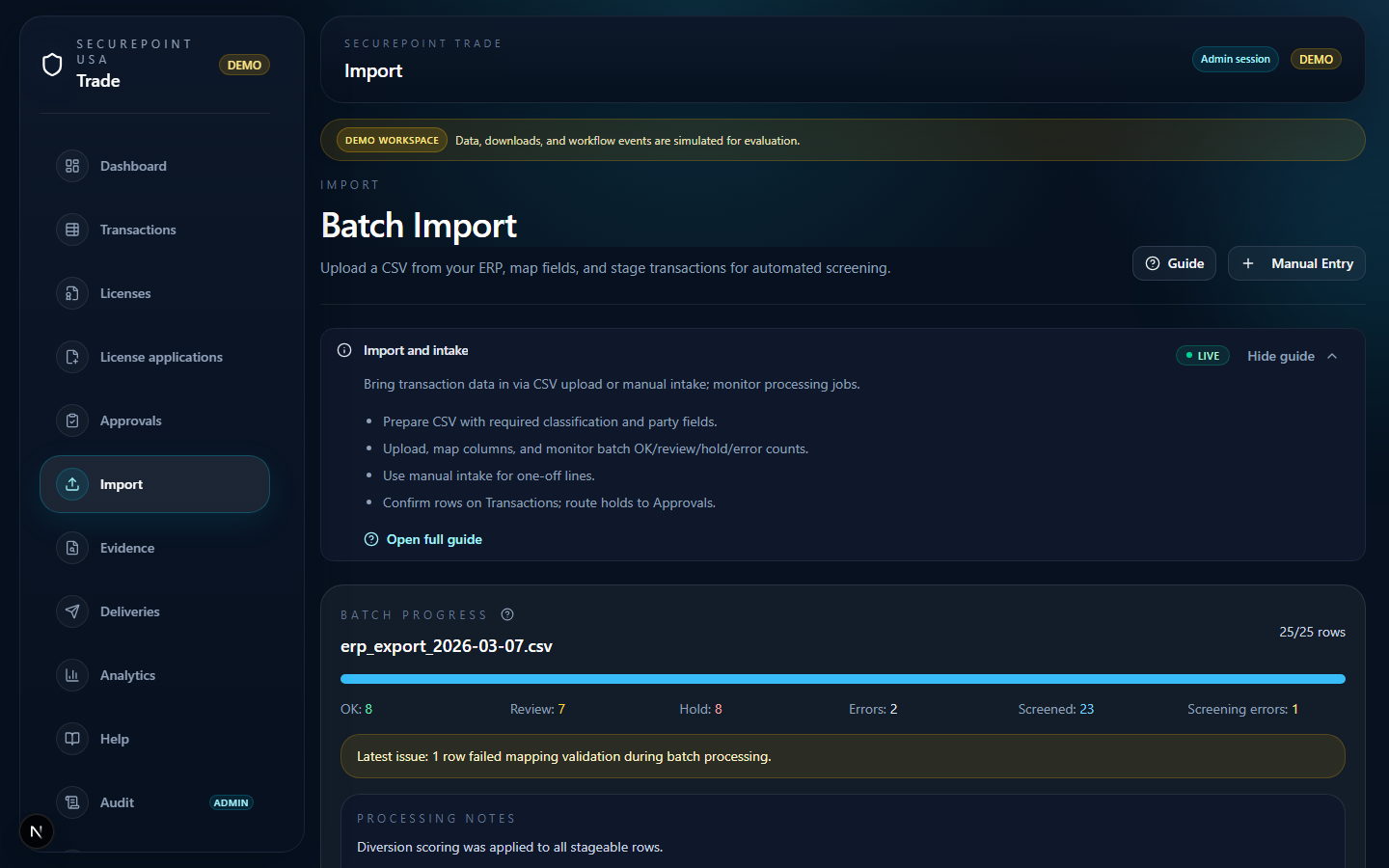
- Open /import — review upload and manual intake layout.
- In demo, rows may already exist; production teams stage CSV here first.
Step 5 — Transaction queue
- Open /transactions — confirm Export Transactions heading.
- Pick a row: note disposition badge and flags column.
- Click an order number to open detail.
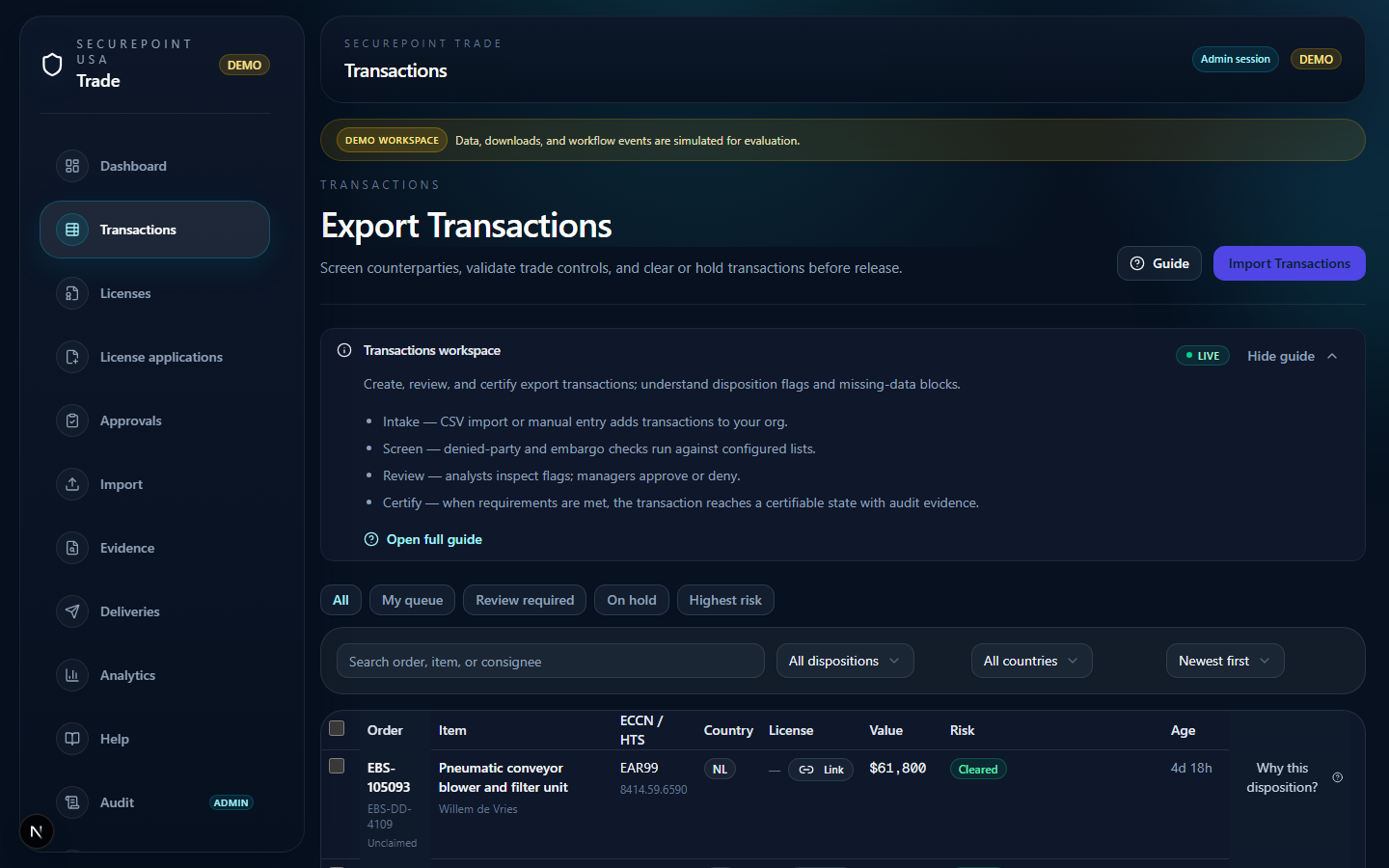
- Sidebar — Transactions selected
- Filter bar
- Disposition badges
- Row state indicator
Step 6 — Transaction detail
- On detail: read Trade context, screening results, and decision panel.
- For incomplete demo rows, Required fields show why certification is blocked.
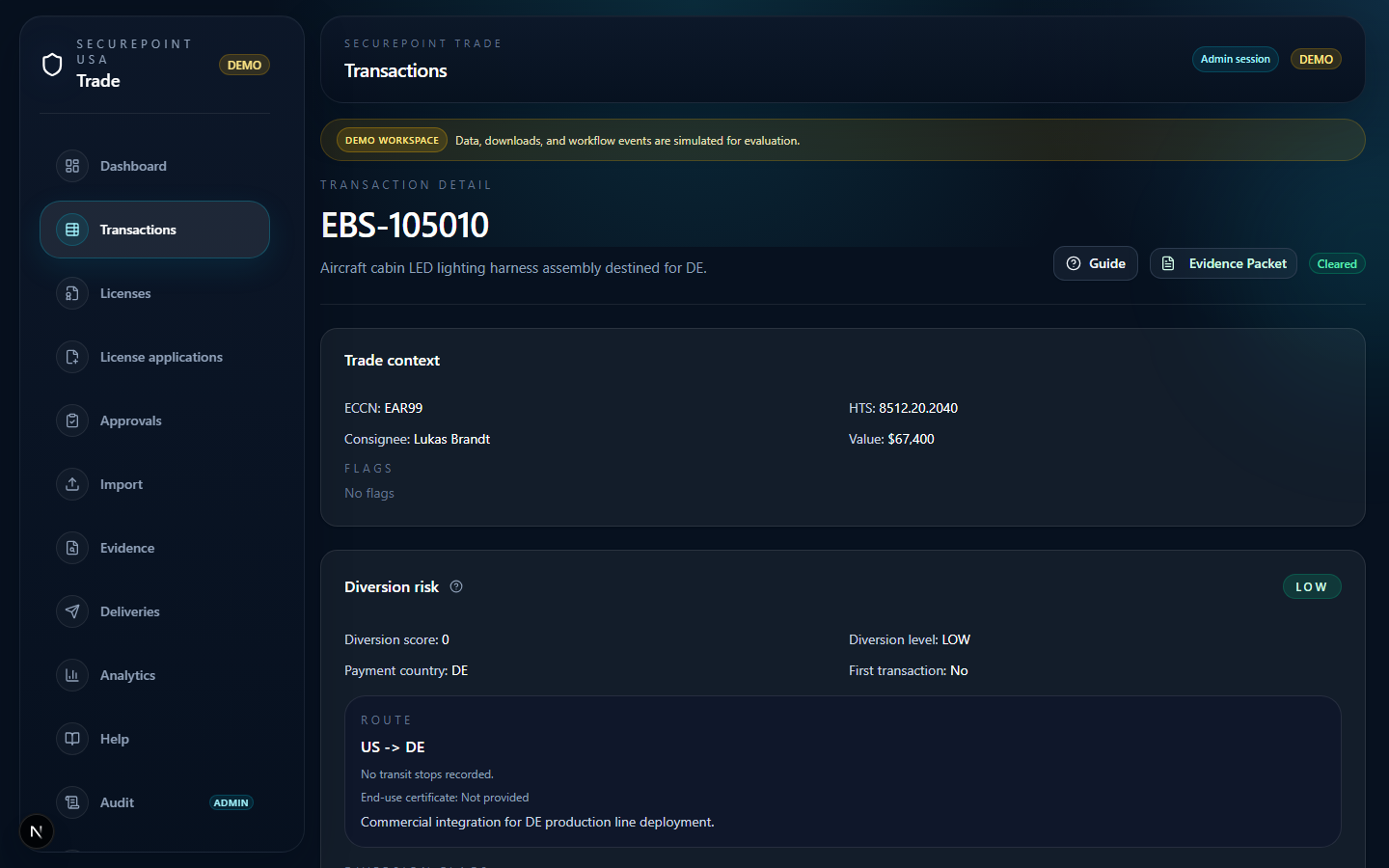
- Trade context panel
- Classification block
- Screening result
- Decision panel
Step 7 — Approvals
- Open /approvals — press ? for keyboard shortcuts.
- Claim a record, open the inspector, locate where rationale is recorded.
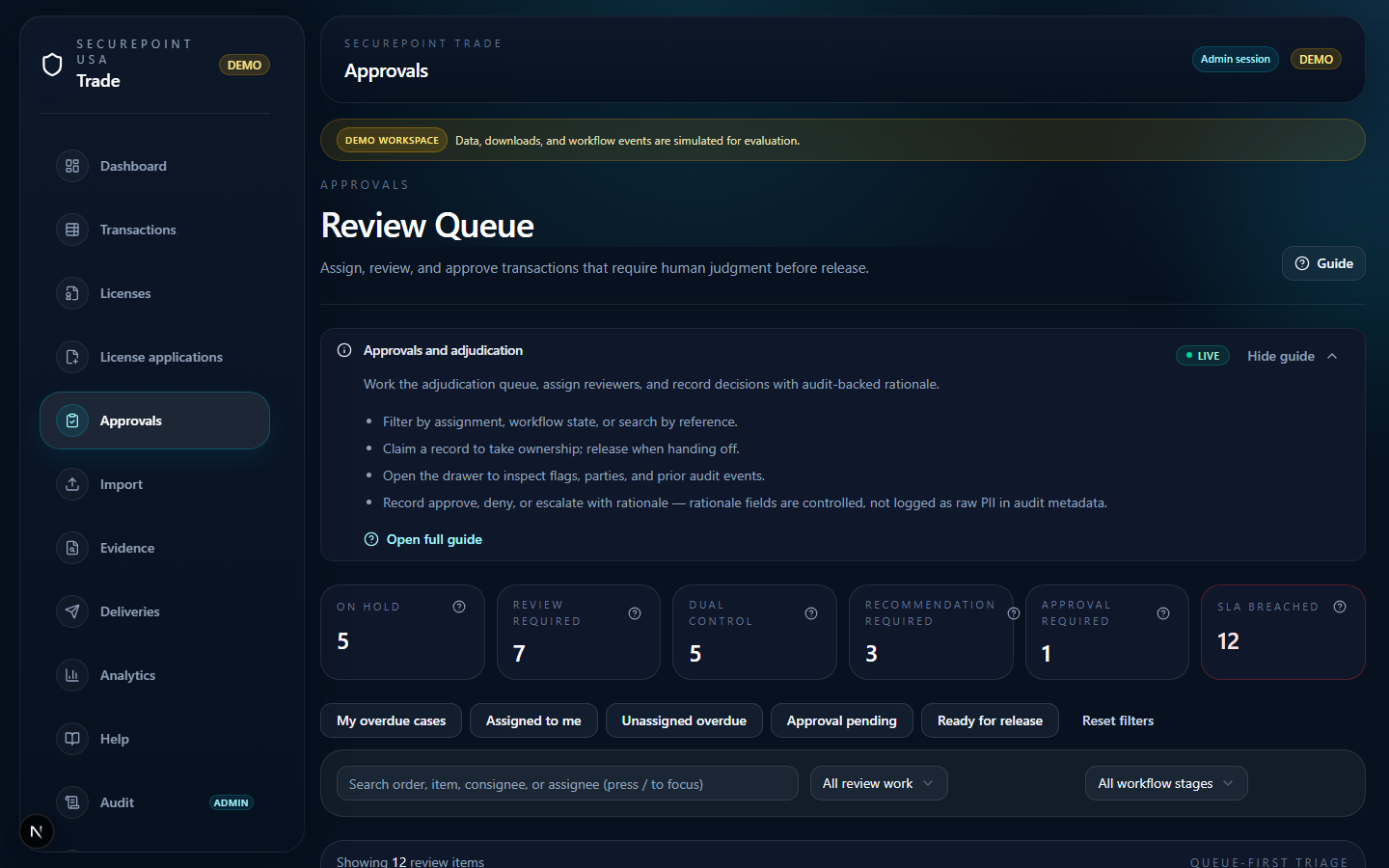
- Sidebar — Approvals selected
- Review queue header
- Filter and state controls
- Claim / decision action
Step 8 — Evidence
- Open /evidence — enter a transaction ID from step 5 or 6.
- Regenerate the pack and confirm screening and decision data appear.
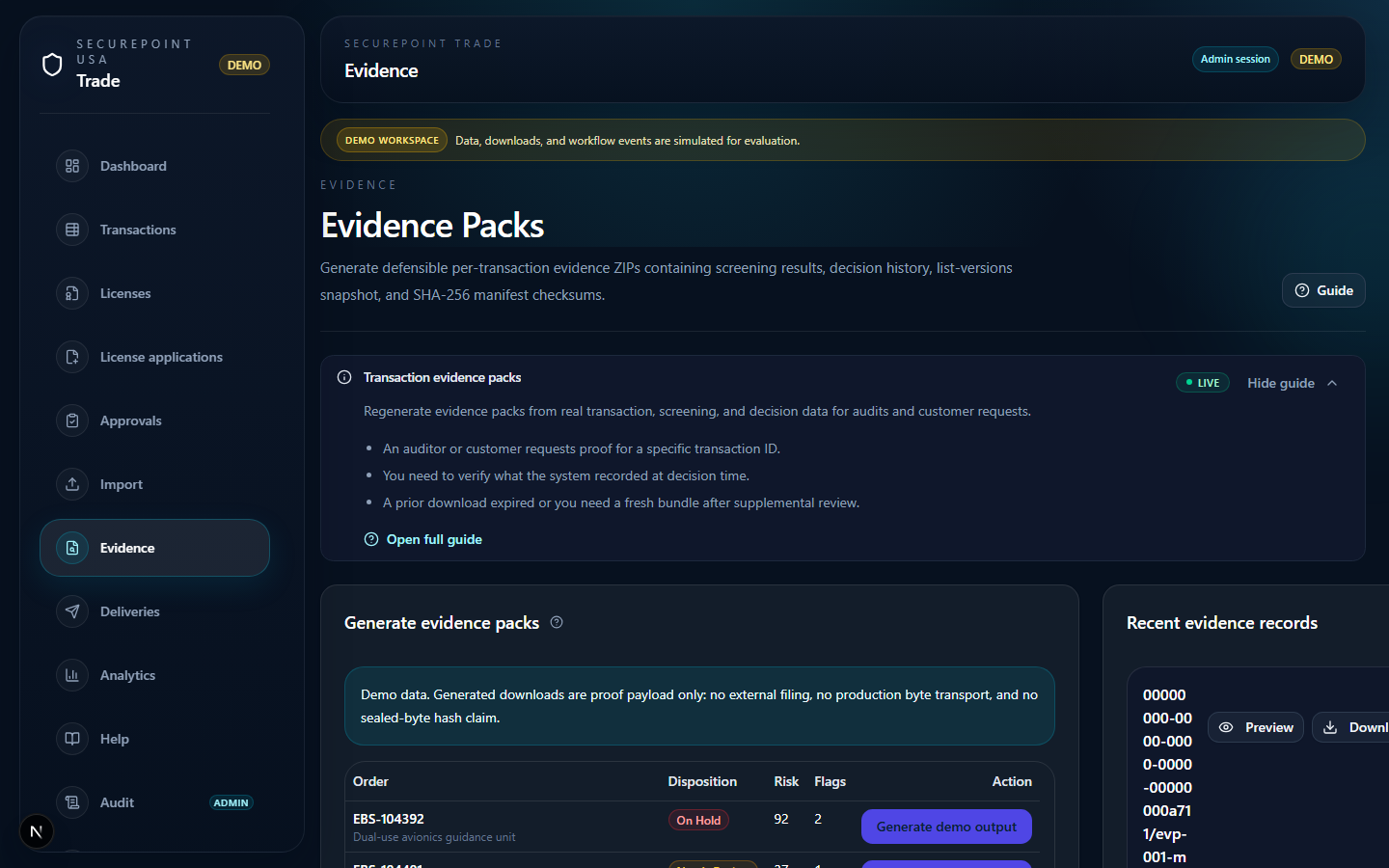
- Sidebar — Evidence selected
- Evidence Packs header
- Regenerate by transaction ID
- Existing pack list
When Help fails you
If a step says “you should see X” but the UI shows something else, the Help article is wrong — not you. Note the help slug, route, and missing label; file an edit to content.ts or the linked docPath. Re-run guided practice after the fix.
Related guides
Related workspaces
Extended operator documentation: docs/help-browser-walkthrough-plan.md in the Trade repository (for administrators and implementers).