Verified capability suitable for normal customer operations.
Purpose
The Transactions workspace is the system of record for each export line or order you are evaluating. Every screening run, hold, license requirement, and final disposition ties back to a transaction record.
What you see on the queue
The queue is your first view of every transaction your org has under review. The callouts on the figure below name the four elements you will use most.
- Sidebar — Transactions is selected; this is where you live as a compliance analyst.
- Filter bar — narrow by disposition, assignee, or destination when the queue grows.
- Disposition badges — at-a-glance state per row (cleared, hold, pending, etc.).
- Row state indicator — surfaces banners like "missing classification" or "screening rerun needed".
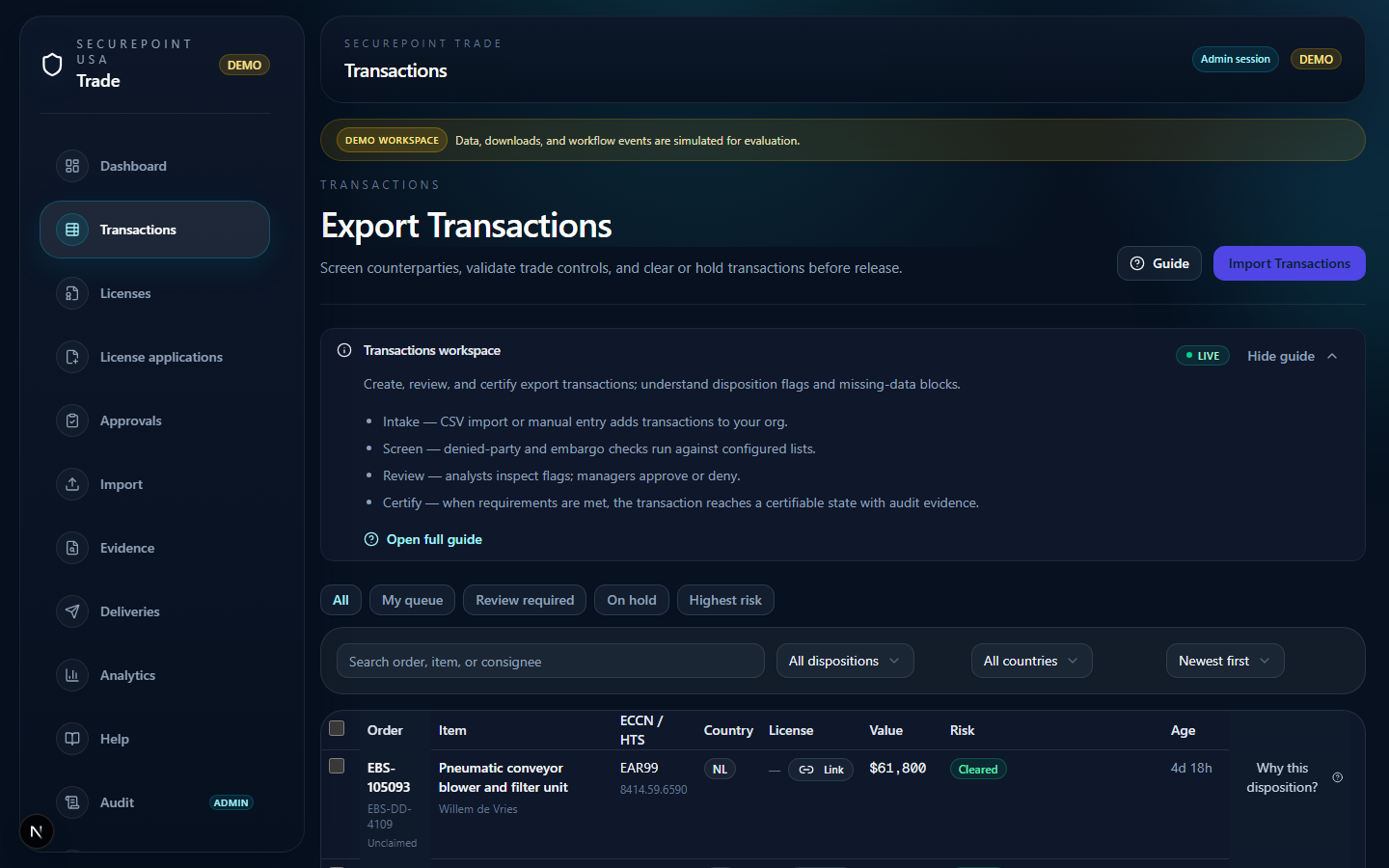
- Sidebar — Transactions selected
- Filter bar
- Disposition badges
- Row state indicator
Typical workflow
- Intake — CSV import or manual entry adds transactions to your org.
- Screen — denied-party and embargo checks run against configured lists.
- Review — analysts inspect flags; managers approve or deny.
- Certify — when requirements are met, the transaction reaches a certifiable state with audit evidence.
Opening a transaction
Click any row to open its detail page. The four annotated panels are where every decision is made and recorded.
- Trade context panel — parties, destination, value, classification at a glance.
- Classification block — ECCN/HTS plus any missing-field warnings; certification is blocked while gaps remain.
- Screening result — denied-party and embargo check outcome with list snapshot reference.
- Decision panel — record disposition with rationale; the rationale field is controlled (not raw PII in audit metadata).
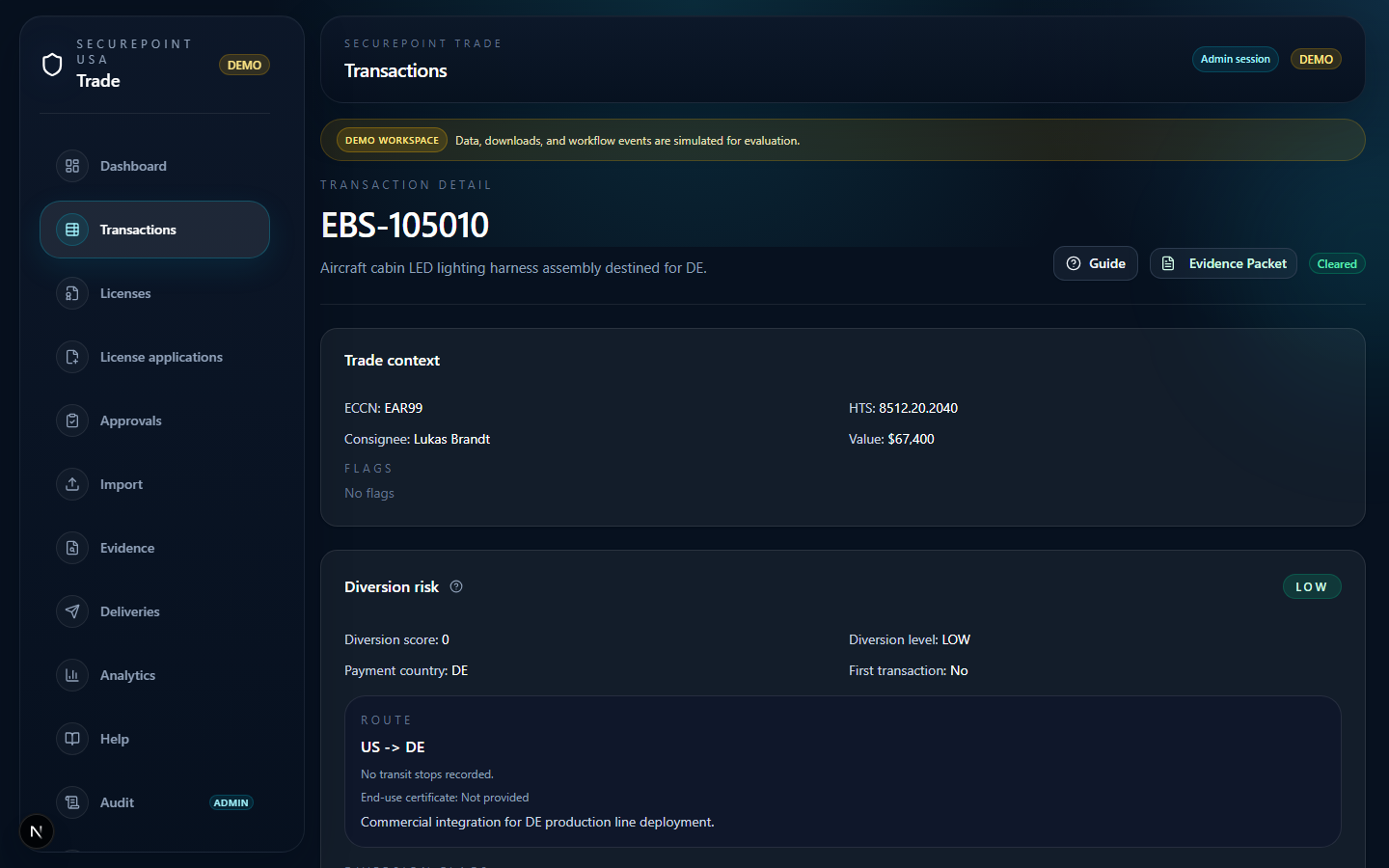
- Trade context panel
- Classification block
- Screening result
- Decision panel
Held row inspection
When screening flags a row or a policy holds it, the detail page shifts to make adjudication first-class. Walk these three areas in order.
- Hold banner — names why the row is held and which role can release it.
- Screening flag detail — the specific list, name match, and confidence score.
- Adjudication entry point — opens the Approvals workspace path; record decision + rationale there, not on the detail page.
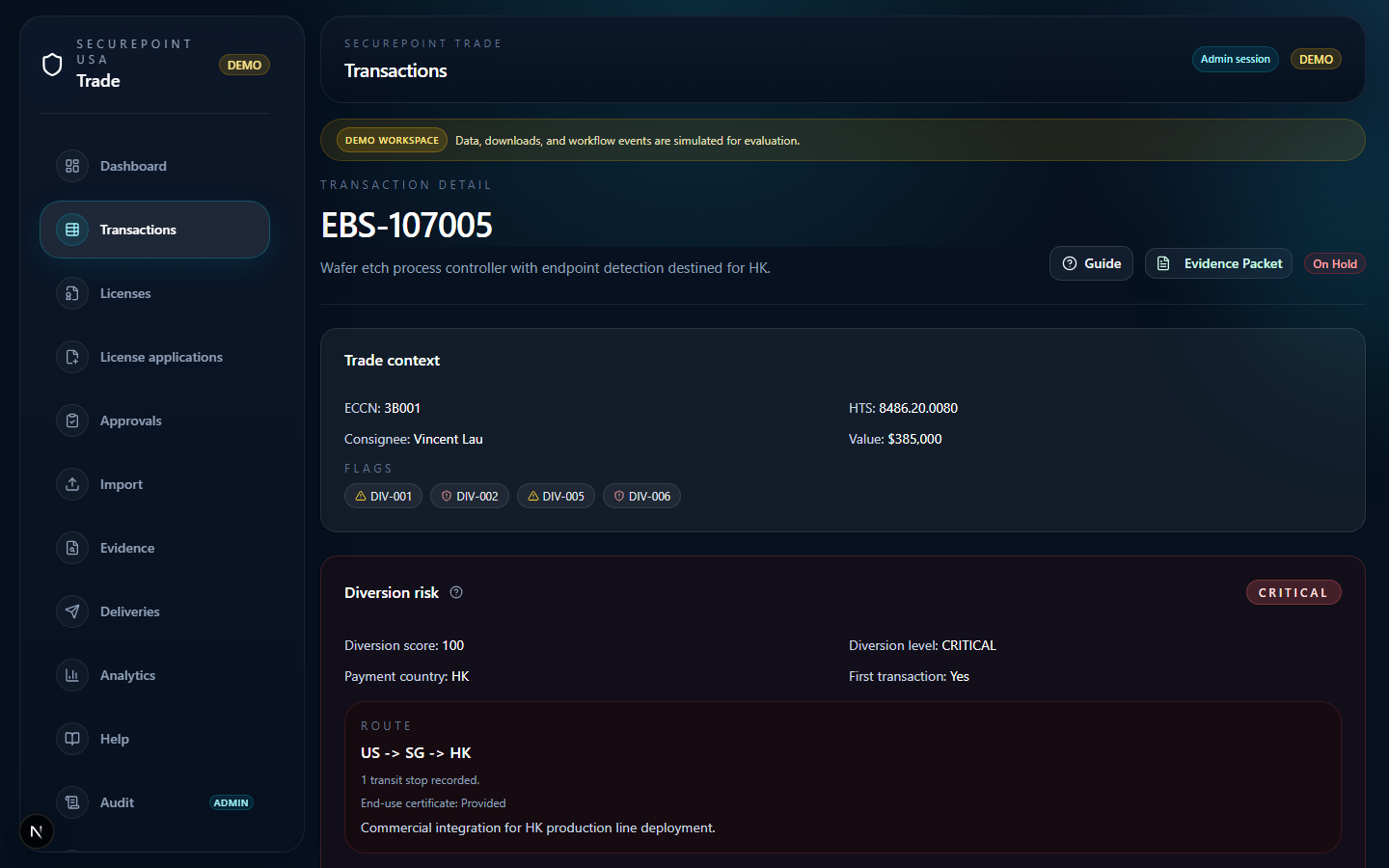
- Hold banner
- Screening flag detail
- Adjudication entry point
Disposition and flags
Use the "Why this disposition?" control on a row to see compliance rationale and active flags. A hold or block means something required is missing or failed — classification, party data, screening, or license coverage.
Incomplete transactions
Trade refuses to certify when required fields or screening results are missing. Fix gaps in the transaction detail view, re-run screening if needed, then return to approvals.
Producing evidence after a decision
Once a transaction has a recorded disposition, you can regenerate its evidence pack on demand. The pack assembles screening, decision, and audit metadata for export.
- Pack list — every prior pack for your org, newest first.
- Regenerate by transaction ID — paste or pick a transaction to produce a fresh pack from stored workflow data.
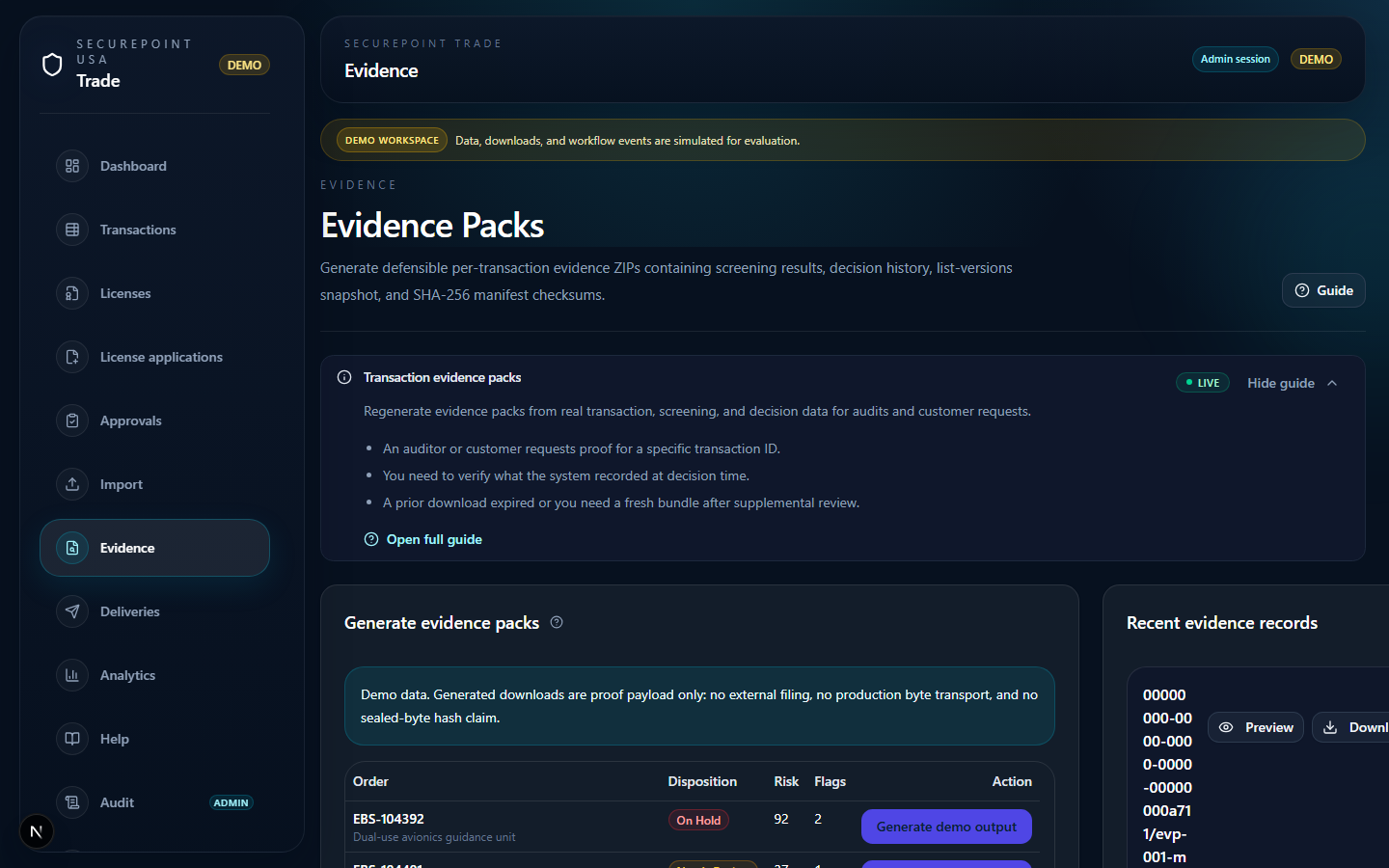
- Sidebar — Evidence selected
- Evidence Packs header
- Regenerate by transaction ID
- Existing pack list
Keyboard
Press ? on any workspace page to open the Guide panel for this article. The hub search also supports route-aware help — search "transactions" to surface this article from anywhere.
Related guides
Related workspaces
Extended operator documentation: docs/user-guides/transactions-workflow.md in the Trade repository (for administrators and implementers).