Verified capability suitable for normal customer operations.
What Trade does
SecurePoint Trade is your export-compliance operating workspace. It holds transactions, screening results, adjudication decisions, license tracking, evidence packs, and audit history for your organization.
Trade does not replace your ERP or regulator portals. It reads transaction data, runs compliance checks, records decisions, and produces evidence you can retrieve later.
New to export compliance?
If terms like disposition, screening hit, or drawdown are unfamiliar, read Export compliance basics first — plain vocabulary only, not legal advice.
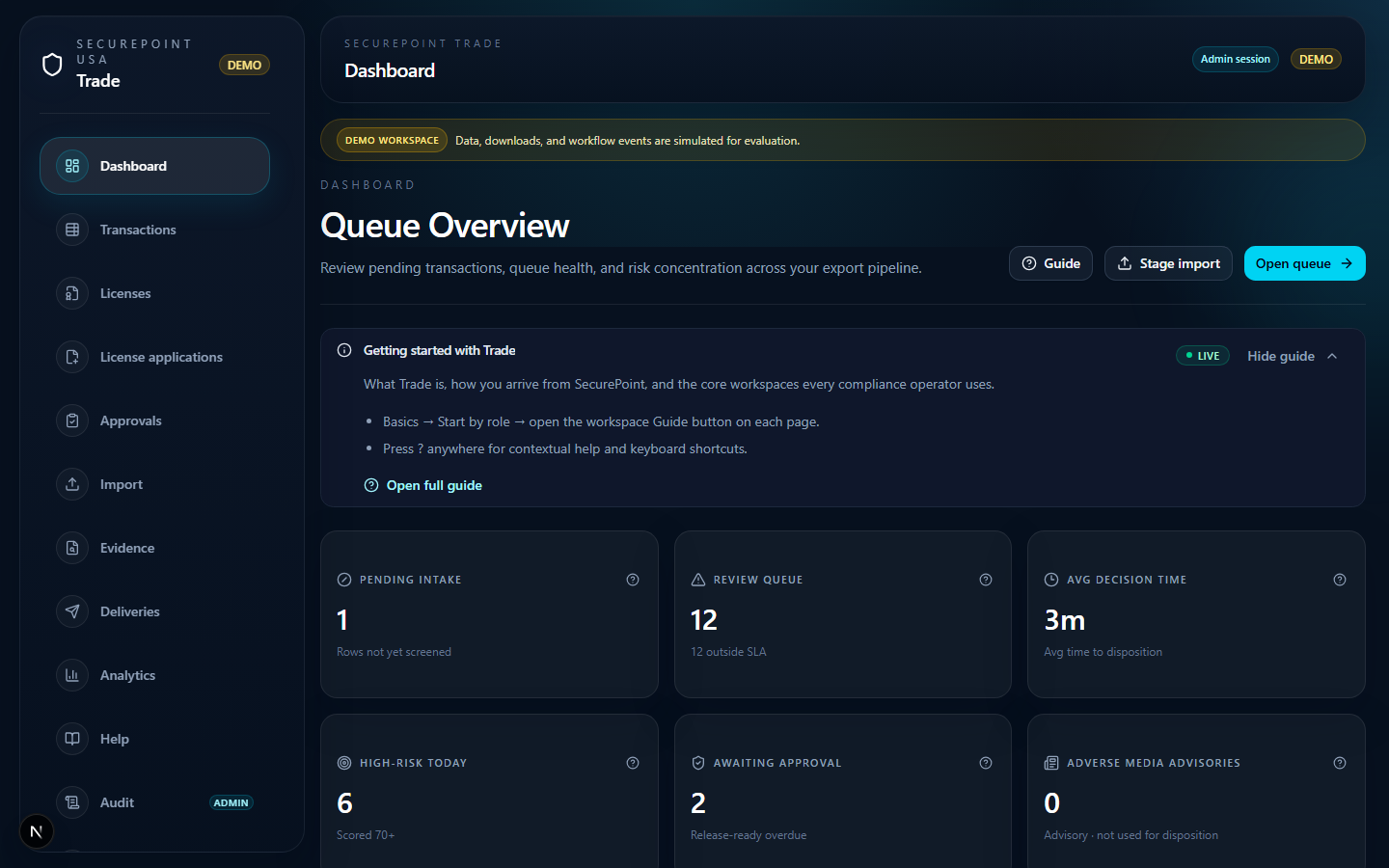
- Basics → Start by role → open the workspace Guide button on each page.
- Press ? anywhere for contextual help and keyboard shortcuts.
Your first week
- Day 1 — Help hub, sidebar tour, pick your role path.
- Day 2–3 — Import → Transactions → Approvals → Evidence on sample rows.
- Day 4–5 — Deepen by role (Analytics for managers, Settings for admins).
In the browser (Day 1)
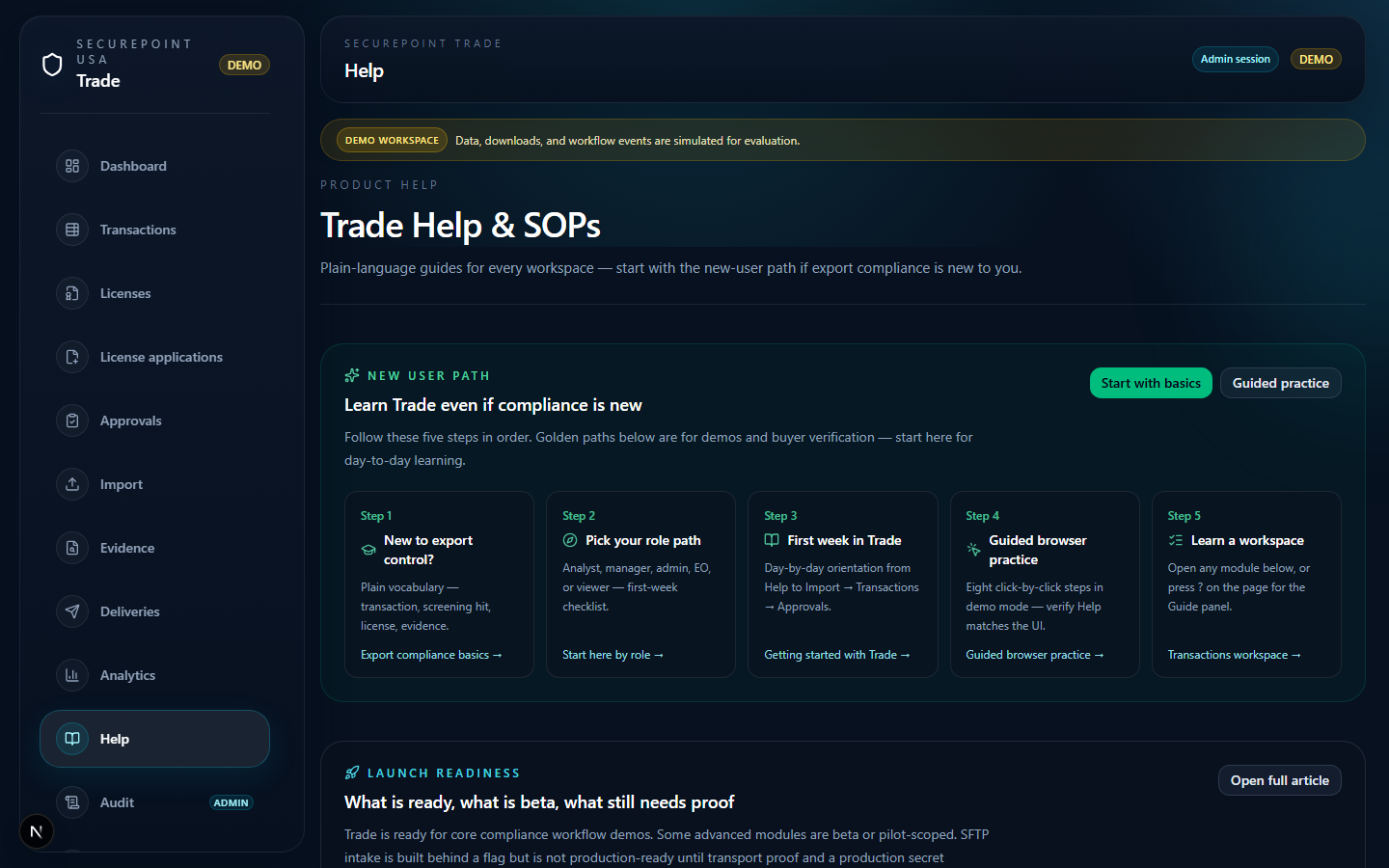
- Open /help — confirm New user path and search are visible at the top.
- Click Start with basics → read Export compliance basics (about 10 minutes).
- Open Start here by role → follow the Compliance analyst bullets.
- Navigate to Dashboard from the sidebar — note Queue Overview KPIs.
- Optional: open Guided browser practice for a click-by-click checklist.
How you sign in
Production customers typically arrive through SecurePoint platform handoff from app.securepointusa.com/trade. Your organization, role, and session are provisioned during that callback.
If you see a platform login message on the Trade login screen, use SecurePoint platform login rather than a standalone Trade password unless your administrator enabled a migration or break-glass path.
Where to work first
- Dashboard — queue pressure, license risk, and diversion signals at a glance.
- Transactions — every shipment or order line under review.
- Approvals — adjudicate holds and document rationale.
- Evidence — regenerate transaction evidence packs on demand.
Demo vs live mode
Demo mode uses simulated data for evaluation. Live mode uses your organization database with real screening, audit, and storage behavior. Treat demo success as orientation only — pilot proof requires live staging.
Related guides
Related workspaces
Extended operator documentation: docs/user-guides/getting-started.md in the Trade repository (for administrators and implementers).